

MFA blocks over 99% of account takeover attacks. If your business isn't using it yet, this is the most impactful security change you can make today.
What is MFA?
Multi-factor authentication (MFA) means proving your identity in two ways before you can log in. Instead of just typing a password, you also confirm on your phone, enter a code from an app, or use a fingerprint. Even if someone steals your password, they can't get in without that second step.
You've probably used it already — your bank asks you to confirm payments on your phone, and most personal email accounts now offer it. The difference is that many businesses still haven't turned it on for their work accounts, leaving the door wide open.
Why passwords alone aren't enough
Passwords get stolen more often than most people realise:
- Phishing emails trick staff into typing their password on a fake login page. These are increasingly convincing — AI-generated emails now mimic real colleagues and suppliers.
- Data breaches at other services leak passwords. If someone reuses the same password for LinkedIn and their work email (and many people do), attackers can walk straight in.
- Credential stuffing uses automated tools to try leaked username/password combinations against thousands of services in minutes.
- Brute force attacks try every possible combination. Short or simple passwords fall quickly.
Once an attacker has access to a single business email account, they can send invoices to your clients, redirect payments, access shared files, and move deeper into your systems. The average cost of a business email compromise in the UK is over £30,000.
How MFA actually works in practice
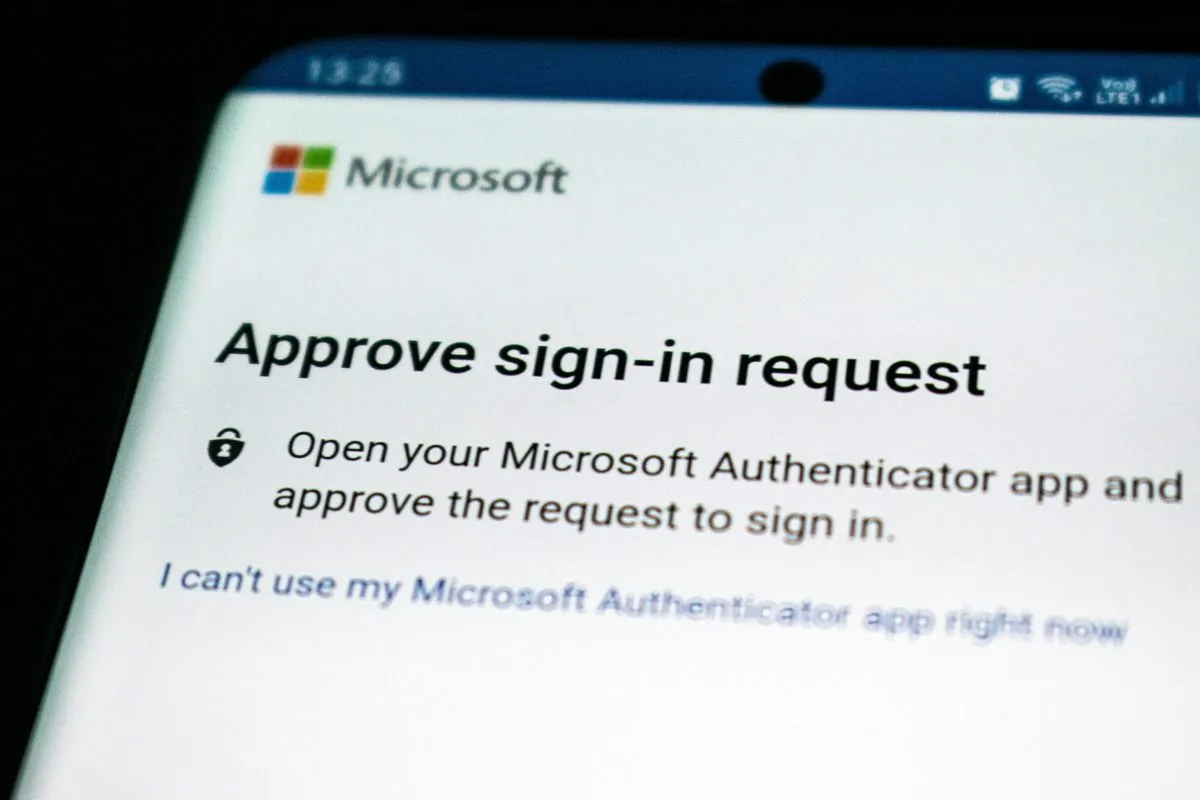
For most businesses, MFA on Microsoft 365 works like this:
- You type your email and password as normal.
- Microsoft sends a notification to the Microsoft Authenticator app on your phone.
- You tap "Approve" (sometimes with a number match).
- You're in. The whole thing takes about 5 seconds.
You don't need to do this every time — Microsoft remembers trusted devices for up to 90 days. So on your usual work laptop, you'll only see the MFA prompt occasionally. On a new or unfamiliar device, it always asks — which is exactly the point.
What we recommend
Not all MFA is equal. Here's what we set up for our clients:
- Microsoft Authenticator app — push notifications are faster and more secure than SMS codes. Free on iOS and Android.
- Number matching — the app shows a number you must type, preventing "MFA fatigue" attacks where hackers spam approve requests hoping you'll tap yes by mistake.
- Conditional access policies — skip MFA on trusted devices at the office, enforce it everywhere else. Balances security with convenience.
- Hardware keys (FIDO2) — for high-risk accounts (directors, finance), a physical USB key is the strongest option. You tap the key to log in. No phone needed, completely phishing-proof.
Common concerns
"My team will find it annoying"
The initial rollout takes a few days of adjustment. After that, most people barely notice it — a quick tap on your phone every few weeks. We've rolled out MFA to hundreds of users and the complaints stop within the first week. The alternative — getting hacked — is significantly more disruptive.
"What if someone loses their phone?"
We set up backup methods during rollout: a secondary phone number, backup codes, or a hardware key. If someone genuinely can't access any method, we can reset MFA from our admin console within minutes.
"We don't have anything worth stealing"
Every business has email. Email is the gateway to everything — password resets, invoices, client data, contracts. Attackers don't need your trade secrets; they need your email to impersonate you and defraud your clients.
"We're too small to be targeted"
Automated attacks don't care about company size. Bots try millions of stolen credentials against Microsoft 365 login pages every day. If your password is in a breach database and MFA is off, you're a target whether you have 3 employees or 3,000.
How we roll it out
We handle the entire MFA deployment so your team doesn't have to figure it out themselves:
- Audit — we check which accounts already have MFA and which don't, and identify any legacy apps or systems that need adjusting first.
- Setup — we configure conditional access policies, set security defaults, and prepare the rollout.
- User enrolment — we walk each user through installing the Authenticator app and registering their device. This takes about 5 minutes per person.
- Enforce — once everyone is enrolled, we switch MFA from optional to required. No exceptions.
- Monitor — we watch for failed sign-ins, blocked attacks, and users who need help. You get a report showing how many attacks MFA blocked in your first month — it's usually eye-opening.
Get MFA turned on
If you're a Plan-IT client, ask us to check your MFA status — we can tell you in minutes which accounts are protected and which aren't. If you're not yet a client, get in touch and we'll include MFA setup as part of your onboarding at no extra cost.
It's the single most effective security measure you can take, and it costs nothing to enable. There's genuinely no reason not to do it.